
Storefront and Reservations
The storefront and reservations are part of the Harvest plan. For a live example, see Clearwater Seedling Co’s page.
Your availability page
Once you turn on Publish my availability page in Settings → Storefront, your page is live at garden.gg/nursery/your-address. It shows:
- Your name, short description, location, and ”✓ Licensed nursery #…” if you added a license number in Settings.
- “Pickup:” with your pickup instructions, and when the list was last updated.
- Every lot you’ve listed, grouped by your storefront categories in your order. Lots without a category are grouped by plant type below them.
Each listing shows name, container, price and an availability badge:
| Badge | When |
|---|---|
| In stock (or “12 available” with exact counts on) | More than 3 available |
| Limited (or “Only 3 left”) | 3 or fewer available |
| Ready ~Oct 18 or Coming soon | The lot is still growing |
| Sold out | None available |
The page updates the moment you record a sale or accept a reservation. Unpublished pages return a plain “Nursery not found” page, the same as a nursery that doesn’t exist.
The footer reads “Prices and availability are set by [your nursery]. Taxes, if any, are the seller’s responsibility.” Visitors can also report a nursery, which goes to the garden.gg moderation team.
Printable list and QR poster
From the Share card in Settings (or “Printable list” on your page):
- Printable list: the same page with
?print=1. A clean table of Plant, Size, Price and Availability by category, with a QR code and “Live list & reservations: …” at the bottom. Press Print. - QR poster: a one-page sign with your name, a large QR code, “Scan for live availability” and either “Reserve plants for pickup — pay when you collect.” or “See what’s ready right now.” Press Print poster and tape it to your sale table.
How buyers reserve
- On your page, the buyer taps + on the plants they want. A bar shows “3 plants selected” and Request pickup.
- In “Request these plants” they enter Your name, Email, Phone (optional), a Pickup window (or “No preference”) and a Note (optional). The form explains “Pay at pickup. The nursery confirms availability before anything is held.”
- They press Send request.
Email confirmation. Buyers who aren’t signed in to garden.gg must confirm their email first: “Almost there — check your email … the nursery won’t see it until you do.” The link opens “Confirm your reservation request”, and after Confirm request they see “Request confirmed”. Unconfirmed requests expire after 24 hours and never reach you. Signed-in garden.gg members skip this step and show a “Garden.gg member” badge in your inbox.
Buyers get emails from garden.gg when you accept, decline or cancel their request.
Your reservations inbox
The Reservations tab has status tabs: Requested, Accepted, Picked up, Declined, Cancelled, Expired and No-show. The dashboard also shows “3 open reservations waiting on you”.
Each card shows the buyer, items and quantities, “Pickup:” window, total, and the buyer’s note.
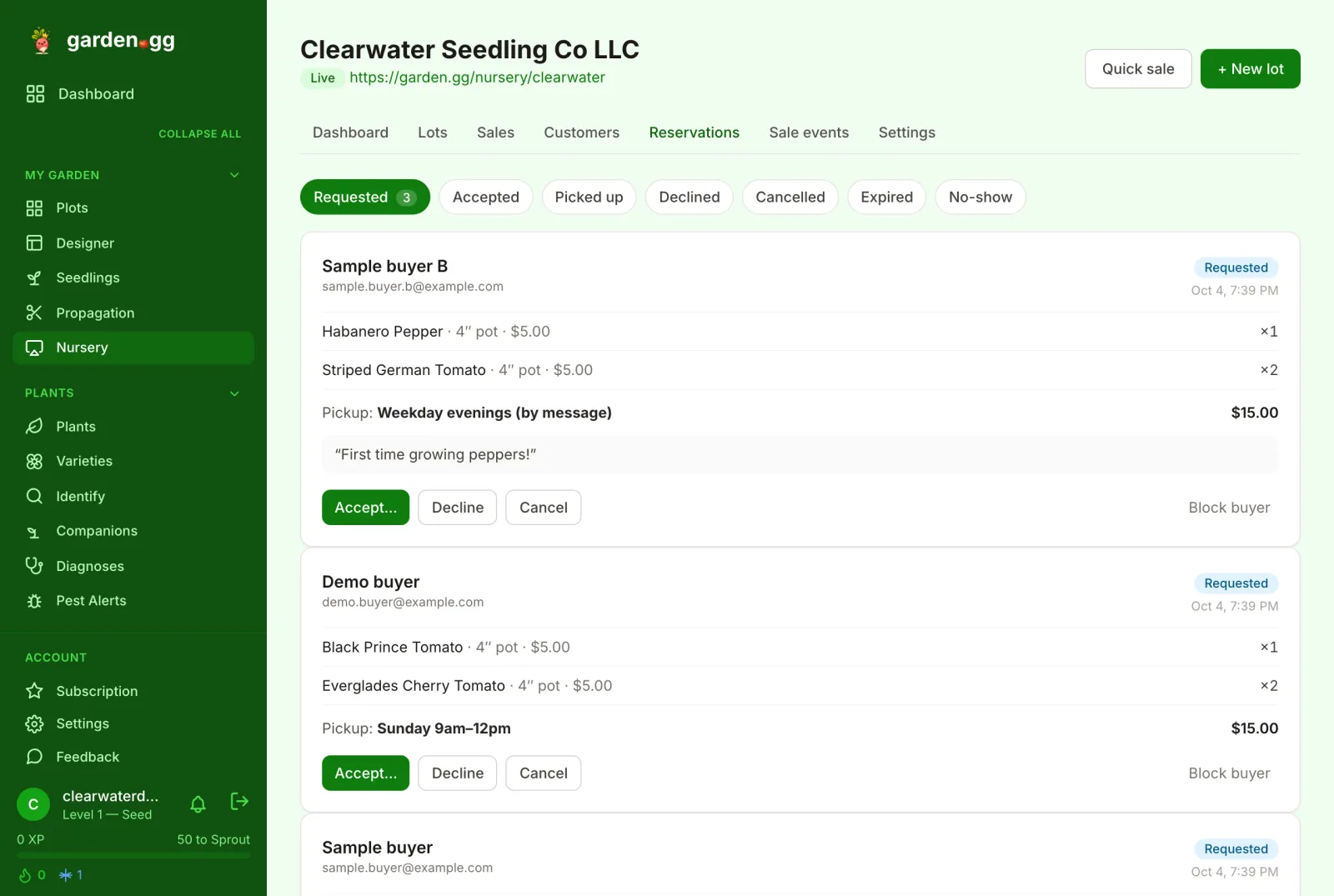
For a new request:
- Accept… lets you check quantities (“of 3”) and add a Note to buyer (optional), then Accept & hold plants. Plants move from available to reserved and come off your storefront count.
- Counter: lower any quantity in the same dialog and the button becomes Send counter. To drop everything, decline instead.
- Decline then Decline request.
For an accepted reservation:
- Picked up: choose Paid with, then Confirm pickup. The sale is recorded and the buyer is added to your customers.
- No-show: the held plants are released back to stock.
- Cancel: cancels and releases the plants.
Expiry
- A request you don’t answer expires after 72 hours.
- An accepted reservation is held for your Hold days setting. The card shows “held until …”. If nobody collects it by then, it expires and the plants are released.
Blocking a buyer
Block buyer on any card: “Future requests from … will be quietly declined — they won’t be told and you won’t be notified.” Use it for repeat no-shows or spam.
Privacy
Buyer names, emails and phone numbers are visible only to you. They never appear on your public page.