
Storefront Categories
What categories do
Categories group lots on your public availability page and in your Lots list. Your storefront shows them in the order you set. Lots without a category are grouped by plant type (Vegetables, Herbs, Fruit, Flowers and so on) below them.
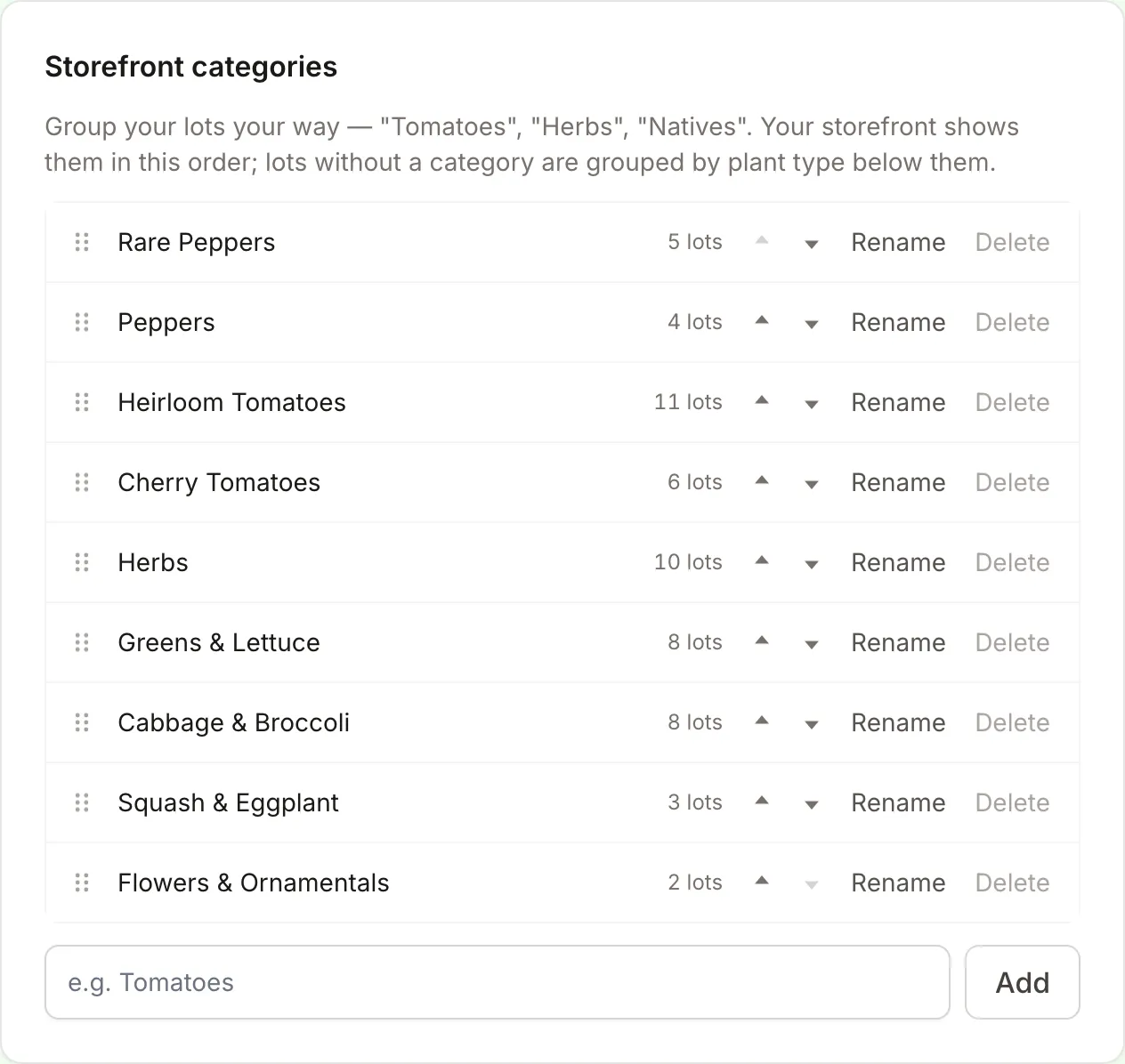
For example, Clearwater Seedling Co uses nine: Rare Peppers, Peppers, Heirloom Tomatoes, Cherry Tomatoes, Herbs, Greens & Lettuce, Cabbage & Broccoli, Squash & Eggplant, and Flowers & Ornamentals.
Create categories
Go to Settings → Storefront categories: “Group your lots your way — “Tomatoes”, “Herbs”, “Natives”.” Type a name in the “e.g. Tomatoes” box and press Add. You can have up to 50 (“You’ve reached 50 categories.”).
You can also create one while adding a lot: in Category, choose New category…, type the name and press Add.
Reorder
Drag a category by its handle, or use the up and down arrows (“Move Herbs up”). The storefront follows the new order right away.
Rename or delete
- Rename, then Save or Cancel.
- Delete asks “Delete Herbs? 10 lots move to uncategorized.” Press Delete or Keep. The lots aren’t deleted; they just lose the category.
Assign lots in bulk
On the Lots tab:
- Press Select lots and tick the lots you want (or Select all).
- Press Set category…, pick a category or “No category”, and Apply.
To recategorize everything active at once, use All lots ▾ → Set category for all…. You’ll see a confirmation such as “12 lots moved to Heirloom Tomatoes”.
The All categories filter on the Lots tab (with a “No category” option) helps you find lots you haven’t sorted yet.