Nursery: Getting Started
Overview
The nursery tools turn plants you grow into stock you can sell: lots with prices and counts, a quick sale cart for market days, a sales log, customers, and (on Harvest) a public availability page that takes pickup reservations. They live under Nursery in the main menu on the web, and in the iOS and Android apps.
New to the idea? The nursery overview shows every feature with real screenshots, and how to run a backyard plant sale covers the selling side.
Which plan you need
| Bloom ($5/mo) | Harvest ($12/mo) | |
|---|---|---|
| Active lots | Up to 25 | Unlimited |
| Cost per plant, quick sale, sales log, dashboard, customers | Yes | Yes |
| Public availability page, reservations, printable list, QR poster | — | Yes |
On the free Sprout plan the Nursery page shows “Run your backyard nursery here” and an upgrade prompt: “Nursery tools start on Bloom.” See pricing for the full comparison.
If you downgrade below Harvest, your storefront is unpublished and new reservations stop, but existing reservations still work and no data is deleted. Below Bloom the tools become read-only: “Your plan no longer includes nursery tools, so this is read-only. Existing reservations still work.”
Step 1: name your nursery
The first time you open Nursery, a two-step setup starts (“Step 1 of 2”).
- Nursery name: what buyers see at the top of your page.
- Web address: your page lives at
garden.gg/nursery/plus this slug. “Lowercase letters, numbers and dashes”, 3–40 characters, no dash at the start or end. If it’s taken you’ll see “That web address is taken. Try another.” - Location (optional): free text such as “Tampa, FL”. It is shown publicly, so use a town or ZIP, never your street address.
Press Next.
Step 2: make it yours
- Short description: one or two sentences about what you grow.
- Pickup instructions: how pickup works, for example “Porch pickup; I’ll text the address once you’re confirmed.”
- Theme: Meadow, Terracotta, Night Garden, Cottagecore, Zen or Retro 95.
Press Create nursery. You land on the dashboard with “Nursery created — add your first lot.”
You can change all of this later under the Settings tab, in the Profile section. The web address can be changed 3 times in 30 days.
Add pickup windows
Under Settings → Pickup windows (“Buyers pick one when they reserve. Up to 10.”), type a window such as “Saturday 9am–12pm” and press Add. Buyers choose one when they request plants. Remove a window with Remove.
Set your pricing defaults
Under Settings → Pricing & holds:
- Default markup: the multiplier for suggested prices (2 means 2×).
- Labor rate / hour: used with each lot’s labor minutes to cost your time.
- Hold days: how long accepted reservations are held for pickup.
Press Save profile. Lots and pricing explains how these feed the suggested price.
Publish your availability page (Harvest)
Under Settings → Storefront:
- Publish my availability page: “Anyone with the link can see your listed lots.” Turning it on shows “Your storefront is live”.
- Take reservation requests: “Buyers request plants for pickup; nothing is held until you accept.”
- Show exact counts: shows “5 available” instead of “In stock”.
Once published, the Share card in Settings has a Copy button for your link, a QR code, and links to the Printable list and QR poster. The page header switches from “Private” to “Live” with your public URL.
Only lots you list appear on the page. See storefront and reservations.
The nursery tabs
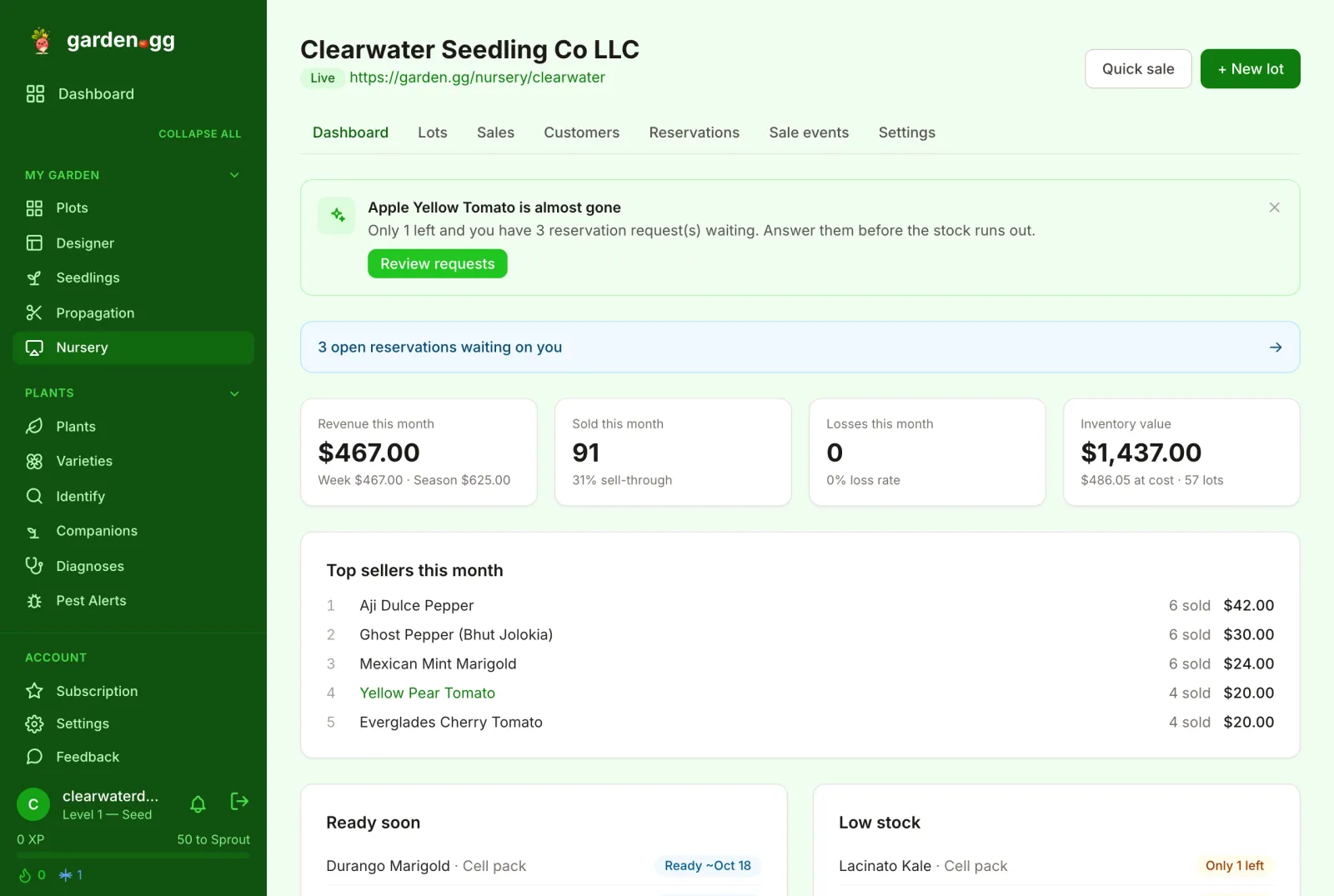
The Nursery area has seven tabs: Dashboard, Lots, Sales, Customers, Reservations, Sale events and Settings, plus Quick sale and + New lot buttons in the header.
The Dashboard shows “Revenue this month”, “Sold this month” (with sell-through), “Losses this month” (with loss rate), “Inventory value” at cost and retail, plus “Top sellers this month”, “Ready soon” and “Low stock”.