
Quick Sale
The cart
Press Quick sale in the nursery header. The page says “Add everything the buyer is taking, then record it as one sale.”
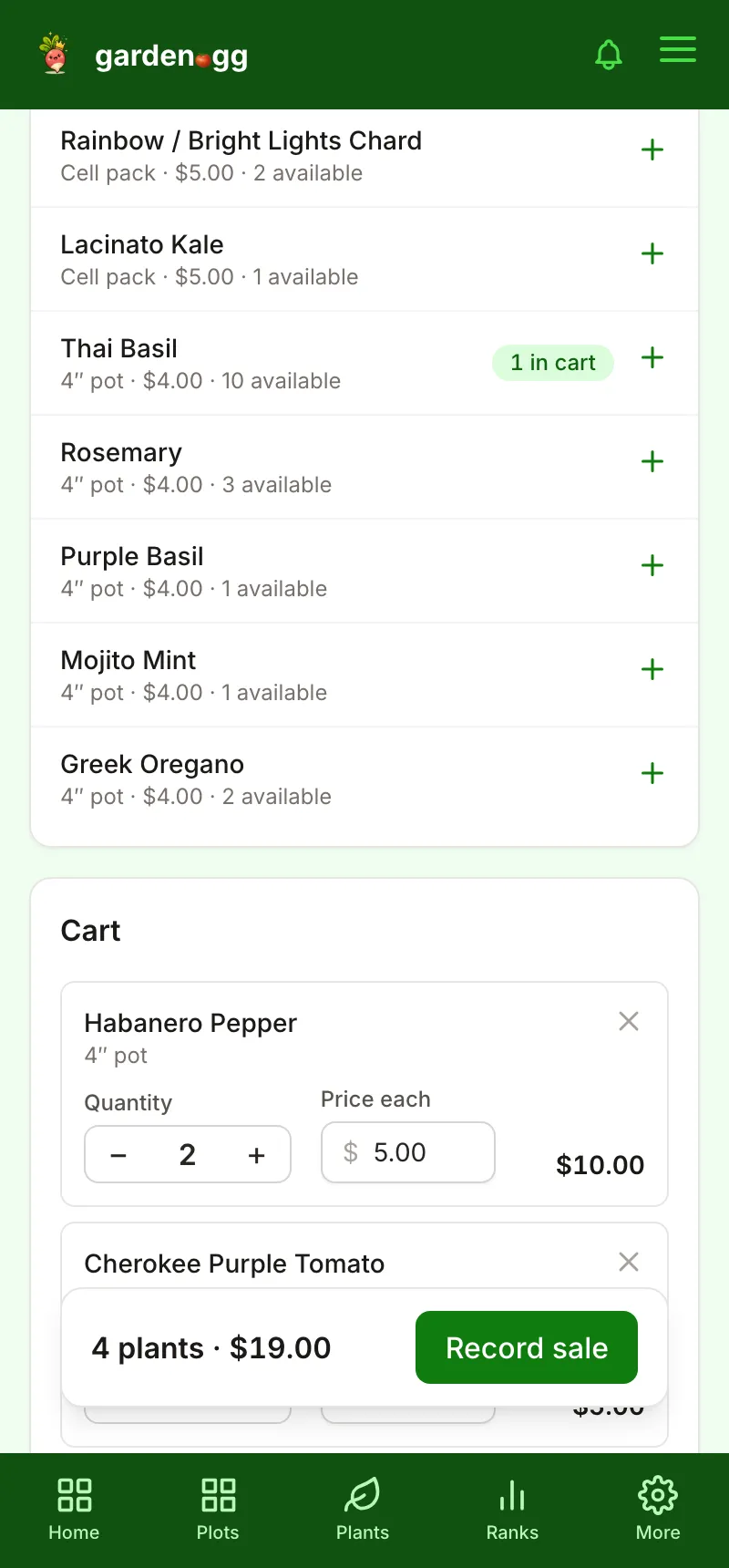
- Under Add plants, tap a lot to add it. Tap again to add another. Use Search lots to find one fast. Each row shows its container, price and how many are available, and lots already in the cart show “2 in cart”.
- In the Cart, adjust Quantity and Price each for any line (for a discount or a bundle price).
- Pick Paid with: Cash, Venmo, Card, Trade or Other.
- Optionally set Date sold (for a sale you’re entering later), Sale event, Buyer (optional) and Note (optional).
- The bar at the bottom shows the total, for example “6 plants · $26.00”. Press Record sale.
You’ll see “Sold 6 plants · $26.00”, and every lot in the cart updates at once. All lines from one cart show as the “Same sale” on the Sales page.
Only lots that are ready or growing and have stock appear. If a lot runs low while you’re building the cart, its line says “Only 2 left” or “None left — remove it to record the rest”, and nothing is recorded until you fix it.
Weak signal at the market
Markets often have poor reception, so quick sale is built not to lose or double-count a sale.
On the web, a failed request is retried automatically up to three times. If it still can’t get through, you’ll see “You’re offline — check your connection and try again.” and the button becomes Retry. Retry resends the same sale with the same request ID, so it is recorded exactly once.
On the iOS and Android apps, a sale made with no connection is saved on the device: “Saved offline — 3 plants will sync”. The app shows how many are waiting (“2 sales waiting to send”) and sends them when you’re back online, each with its original request ID.
If the server can’t accept a queued sale when it syncs (say another sale took the last plant), the sale isn’t dropped. It stays in the queue marked Needs attention, for example “Needs attention: Basil only has 2 left”. Open it, fix the quantities in “Fix queued sale”, and record it again.
A buyer you add as a new customer while offline can’t travel with the queued sale (“Buyer not saved offline — add it from Sales”). Pick an existing customer instead, or add the buyer later from the Sales page.
Single-lot sale
From a lot’s detail page, Quick sale opens a panel for just that lot with Quantity, Price each, Date sold, Sale event, Paid with and Buyer (optional). A backdated sale notes “Recorded on Sep 14 — it counts toward that week’s reports.” Sales can’t be dated in the future or before the lot started.
Sale events
Use the Sale events tab to name a market day or plant swap (“Spring Plant Sale”) with Starts and Ends dates, then press Add event. Pick the event on a sale and the Sales page can filter by it, and each event shows how many plants it sold.